Harness: the bundled web UI
The harness UI ships inside contenox. Run one command and the runtime
you already drive from the terminal opens in the browser: the same sessions, the
same chains, the same model and provider config, the same HITL policies. Nothing
is hosted — it is served by the local contenox serve process, reads and
writes the same SQLite state as the CLI, and stays on 127.0.0.1.
It is the product’s face for work you want to watch: you see the workspace the agent is bound to, which files its policy lets it touch, every tool call as a card, and — before any gated write or command runs — a diff you approve or reject yourself.
The whole loop in 30 seconds: a chat with a registered Claude Code agent in a project workspace — the agent reads the files, the gated write pauses at the inline permission card, one click allows it, and the agent-view overlay shows what the policy lets it touch.
1. Start the harness UI
If you have not installed Contenox and configured a model yet, do the Quickstart first — the harness UI needs a working model like any other entrypoint.
Install (macOS / Linux):
curl -fsSL https://contenox.com/install.sh | shInitialize a workspace once, in the project directory you want to work in:
contenox initThen start the server from that directory and open the printed URL:
contenox serve
# Contenox serve <version> ready: http://127.0.0.1:32123
The harness UI is now at http://127.0.0.1:32123. By default the server binds to
127.0.0.1:32123 — reachable only from this machine. To let other machines on
your LAN reach it, add --remote (binds all interfaces, 0.0.0.0); set ADDR
and PORT for a specific bind. A bearer TOKEN is optional on loopback and
mandatory for any non-loopback bind (--remote or a LAN ADDR), so serving
to the network always requires one.
Remote access and login
Serve to your LAN with --remote. It needs a bearer token (mandatory off
loopback) and provisions one automatically: it uses TOKEN if set, otherwise the
token saved at ~/.contenox-harness/serve-token.txt, otherwise it generates one and saves
it there (mode 0600):
contenox serve --remote
# serve token: generated and saved to ~/.contenox-harness/serve-token.txt (0600) — clients auto-discover it there; `cat` it to log in, or set TOKEN to override
# contenox serve <version> ready: http://0.0.0.0:32123
#   reachable on LAN: http://192.168.1.50:32123
#   note: plain HTTP — the TOKEN travels in cleartext; front with a TLS reverse proxy on untrusted networks
Other machines open the printed reachable on LAN URL and log in with the token
(cat ~/.contenox-harness/serve-token.txt). Programmatic clients on the same machine —
contenox approvals, mission, fleet — discover that file automatically, so
they need no --token / CONTENOX_SERVER_TOKEN. The file lives in ~/.contenox-harness,
which is always control-plane-denied, so no agent or workspace tool can read it.
To rotate the token, delete the file (a fresh one is generated on the next
--remote start); to return to a tokenless loopback dev server, remove the file
and don’t pass --remote. Serving is plain HTTP, so on any untrusted network put
a TLS-terminating reverse proxy in front (the login cookie is marked Secure
automatically once the connection is HTTPS, directly or via
X-Forwarded-Proto: https).
When a TOKEN is set (required for any non-loopback bind), the harness UI gates the whole
UI behind a login page: opening the site shows a single Access token field.
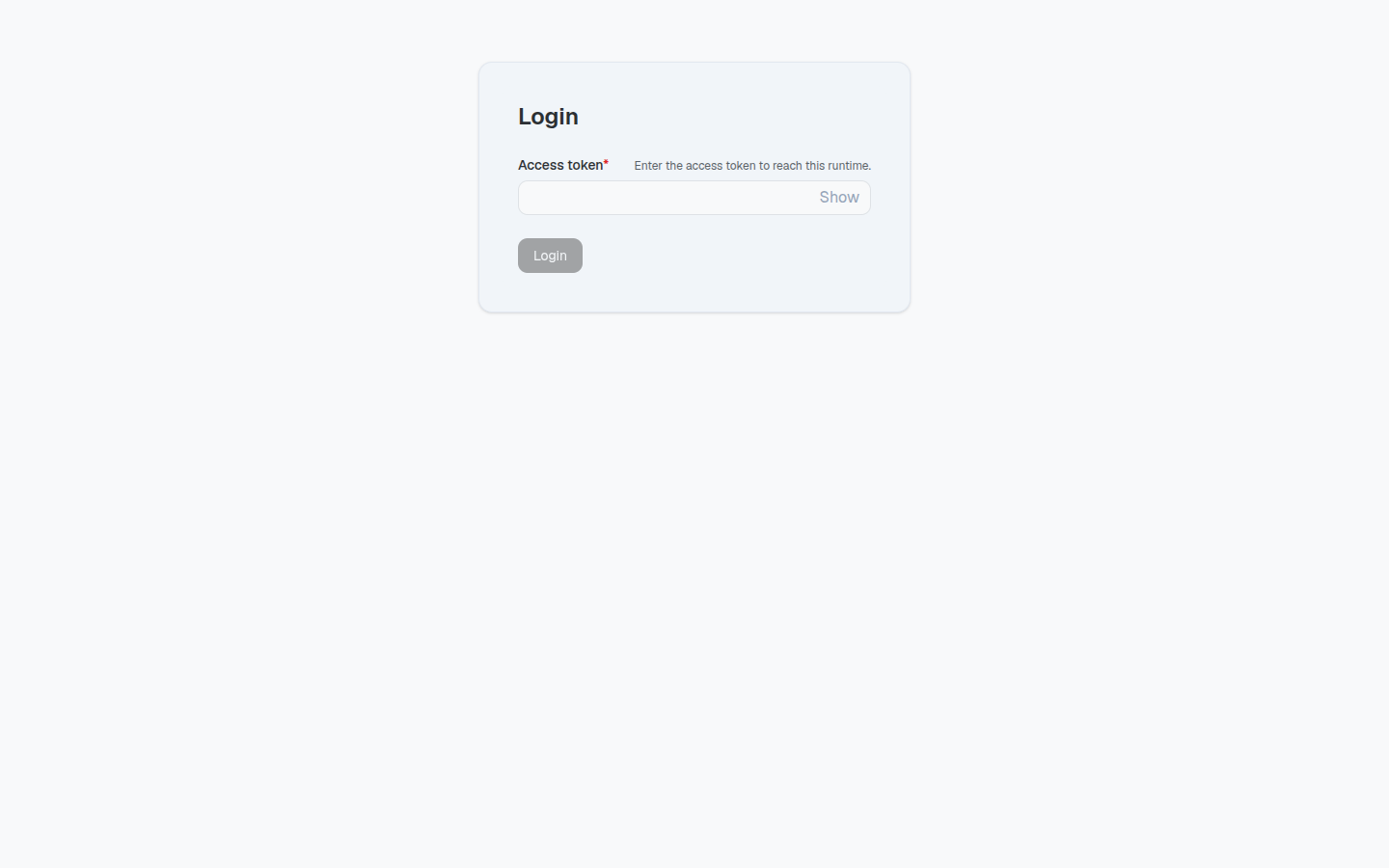
Paste the configured TOKEN and the server verifies it (constant-time) and
returns a secure, HttpOnly session cookie — SameSite=Strict, and Secure
whenever the connection is HTTPS (including behind a TLS-terminating proxy that
sets X-Forwarded-Proto: https). The token is never stored in the browser’s
localStorage or placed in the URL; the cookie rides automatically on every
same-origin request, including the /acp chat WebSocket upgrade. Sign out from
Settings → Remote access, which clears the cookie and returns you to the
login page.
Programmatic clients are unaffected: they keep authenticating with an
Authorization: Bearer <TOKEN> (or X-API-Key) header, and the ACP WebSocket
still accepts a ?token= query parameter. On loopback with no TOKEN, no login
is required and the UI loads with zero prompts.
Allowlisting project directories
The directory you run contenox serve in is always available as a session
workspace — it is the default root. To let a browser session pick other
project directories as its workspace, extend the allowlist. Any of these work,
and they combine:
# Positional arguments — additional roots after the serve directory:
contenox serve ~/code/api ~/code/web

# Repeatable flag:
contenox serve --workspace-root ~/code/api --workspace-root ~/code/web

# Environment (OS path-list separated, ':' on Unix):
WORKSPACE_ROOTS="$HOME/code/api:$HOME/code/web" contenox serve
A session can only ever choose a workspace inside this allowlist — it bounds what any browser client can reach.
The Projects page
Those launch-time roots are structural — they live in the serve command. To
manage projects from the browser, without restarting serve, open Projects
in the admin navigation (or press ⌘/Ctrl-K and search “projects”). It is the
allowlist made legible: every root the runtime can open sessions in, each shown
by its friendly project name (the folder’s .contenox/workspace.id marker
name, or the folder name when unset).
- Add a project points the runtime at an existing folder on its host and names it. A too-broad location — your home folder, a drive root — is refused with a teaching message; grant the project folder itself. Adding a folder that is already registered under a new name renames it.
- New session on any project row is a launcher: it opens a fresh chat already scoped to that project, so you go from “register a folder” to “work in it” in one click instead of adding it and then re-picking it in the chat’s Workspace control.
- Forget appears only on the projects you added at runtime (the managed ones — the serve launch roots and the default root are structural and stay). Forgetting removes the folder from the runtime only; the folder and its files are never touched, and the confirmation says so, noting how many open sessions live under it.
This is the same registry the CLI’s contenox workspace
verbs manage and the init --project
marker writes — one project identity across serve, the CLI, and the browser.
2. A tour of the window
Session sidebar
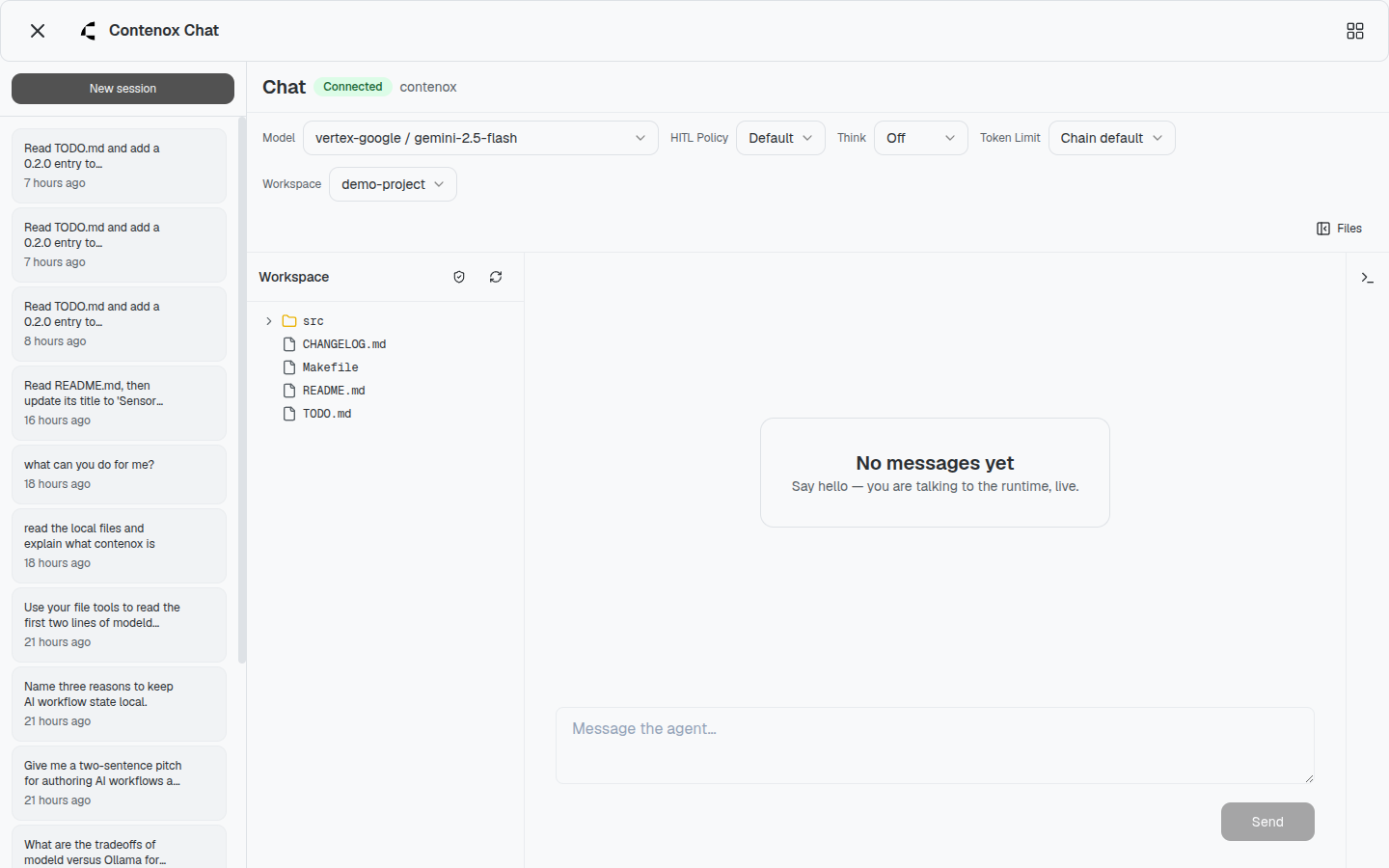
The left sidebar lists your chat sessions. New session starts a fresh one; each row links to its conversation and carries a delete button. Sessions are grouped by the project they run in — the friendly name of the registered root that contains the session’s directory (see the Projects page), falling back to the folder name for a session outside any named project. Each group header shows the project and its session count; with only one project in play the list stays flat. These are the same sessions the CLI sees — see step 3.
Next to New session is a chevron — New chat with an agent. It only
appears once at least one declared agent is
enabled, and it opens the agent picker below. A session started against a named
agent carries that agent’s name (Agent: {name}) on its sidebar row, so you can
tell at a glance which sessions ran on the default runtime and which ran a named
agent.
Per-session controls
Each session has its own configuration, shown in the chat toolbar (collapsed under an Options dropdown on narrow viewports):
| Control | What it sets |
|---|---|
| Model | The model this session runs on. |
| HITL Policy | The named HITL policy that decides which tool calls pause for approval. |
| Think | Reasoning effort — Auto, Off, Minimal, Low, Medium, High, or XHigh. |
| Token Limit | The per-turn output token budget. |
| Workspace | Which registered project the session is bound to — chosen on the empty chat before the first message, immutable afterwards. A launcher on the Projects page pre-selects it. |
Changing a control affects only that session, so you can keep one session on a local model with a strict policy and another on a hosted model — side by side.
Chat with a declared agent
The harness UI is not only a face for the default runtime chain — it can also drive any of the runtime’s declared agents (the task chains discovered from your chain files) from the same window, gated by the same approvals.
- In the sidebar, click the New chat with an agent chevron. The picker lists Contenox (default) — the default chain — at the top, then every enabled declared agent.
- Pick an agent and the empty chat stages it: the greeting reads “Say hello — you are talking to {name}, live”, and the session is bound to that agent the moment you send the first message. The binding is fixed for the life of the session — an agent is chosen at creation, never switched mid-conversation, so there is no in-chat agent switcher.
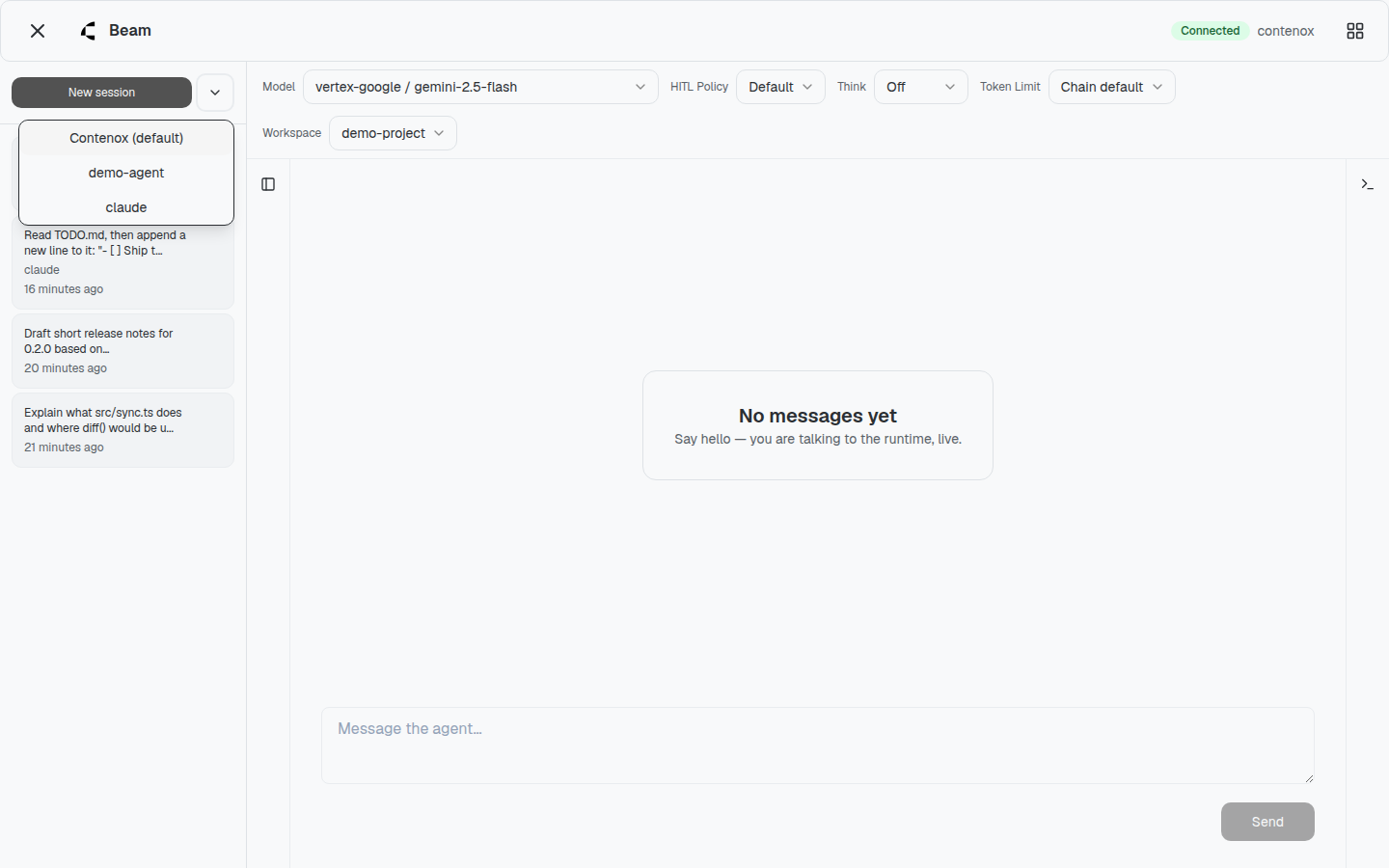
An agent session’s toolbar surfaces the config options that agent advertises for the session, alongside contenox’s own HITL Policy control, so the contenox approval gate still applies to its gated actions.
The agent’s turns stream into the transcript like any other, its tool calls render as cards, and any permission request it raises becomes the same inline card described below.
Workspace file tree and the agent-view overlay
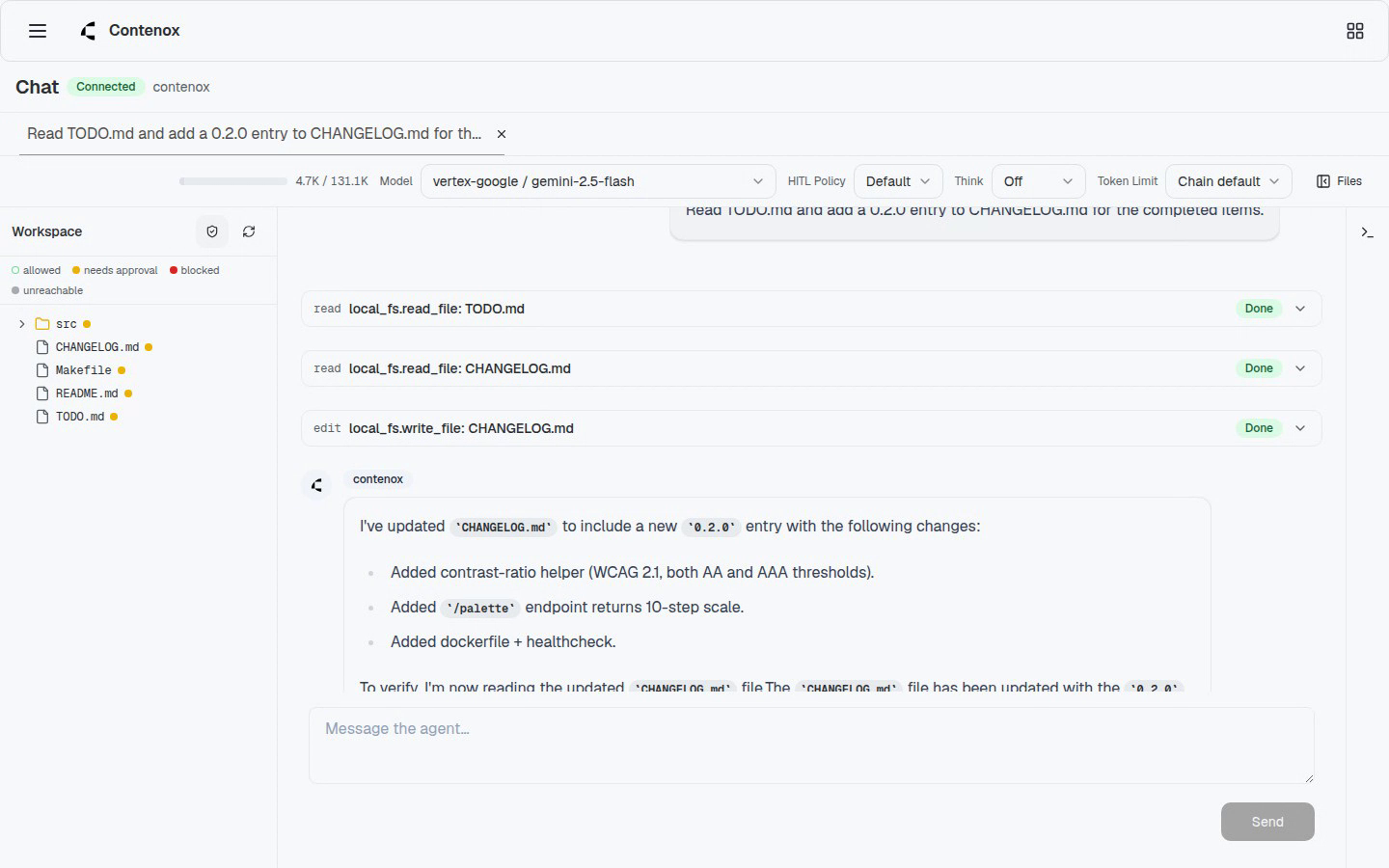
The Files toggle opens the Workspace panel: a lazy file tree of the session’s chosen workspace. Click a file and it opens as a read-only tab beside the chat; directories expand in place.
The tree has an Agent view toggle (the shield button). Turn it on and the harness UI overlays each file with the verdict the session’s HITL policy would return for it — computed from the same policy source the live agent uses, so what you see is what the agent gets:
- allowed — the agent may act on this file without a prompt
- needs approval — a matching call pauses at the approval gate first
- blocked — the policy denies it outright
- unreachable — outside the workspace boundary; the agent cannot see it
It turns “what can this agent touch?” from a question you have to reason about into something you can read off the tree before you send a prompt.
Files and the terminal as tabs
Opened files and the terminal live as tabs in the canvas region beside the chat.
The Terminal tab streams a PTY rooted at the session’s workspace; type !
followed by a command in the chat to run it there, and when the agent itself runs
a shell command mid-turn its output streams into this same tab — every shell line,
yours or the agent’s, runs through the runtime’s own workspace shell. (Terminal
API routes are on by default for local serve; set TERMINAL_ENABLED=false on the
serve process to disable them.)
Composer shortcuts
The prompt composer understands three inline prefixes:
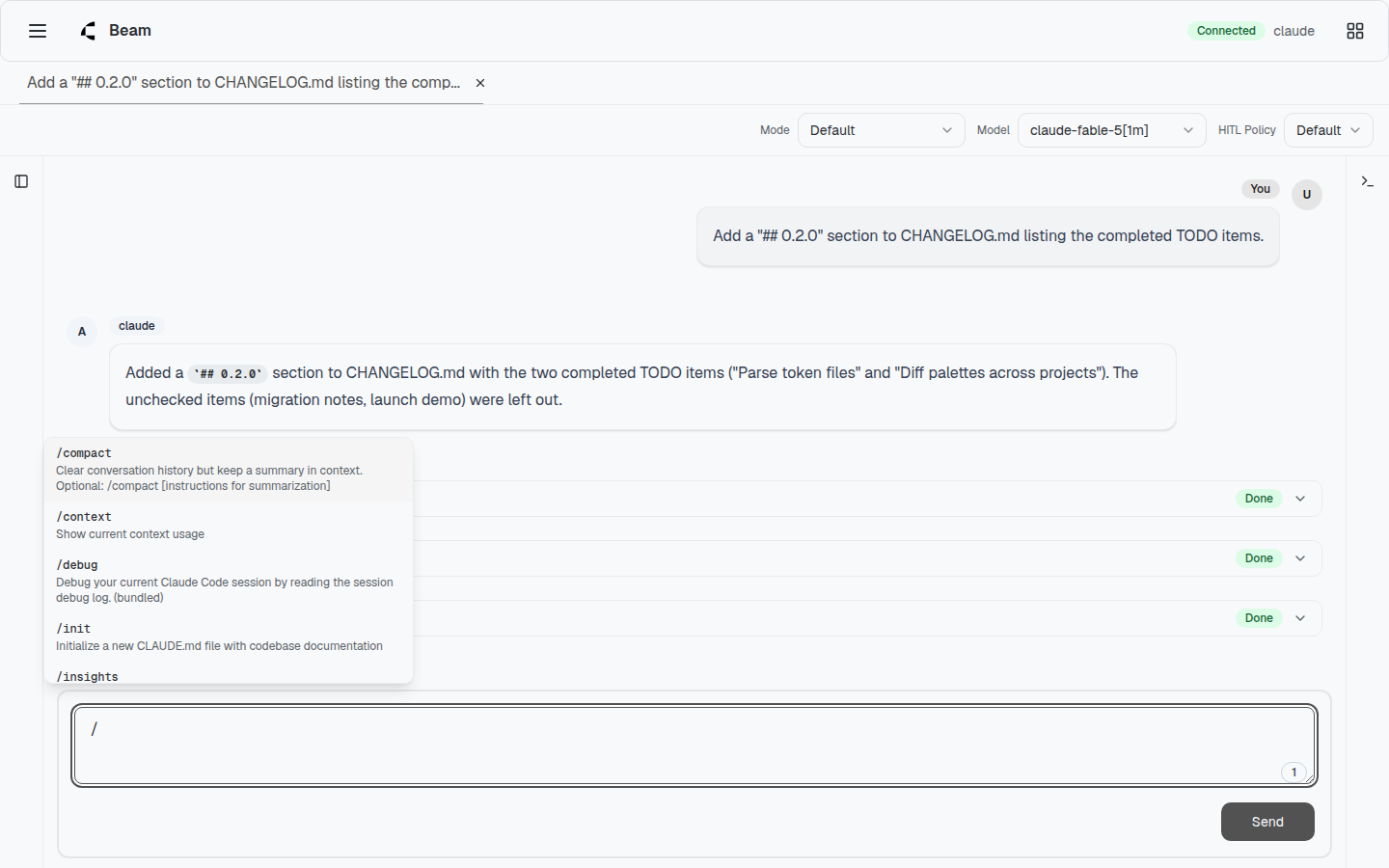
@opens the mention menu — attach a workspace file to the prompt by name, with a live preview of the highlighted file./opens the command suggestions menu of the slash-commands the active agent advertises. The native runtime and a registered external agent each surface their own command set here; picking one drops it into the composer.!runs the rest of the line as a shell command in the workspace Terminal tab (above), with no LLM turn.
The approval gate
When a tool call matches an approve rule in the active HITL policy, the run
pauses and the harness UI raises an inline permission card — a warning-styled card that
appears in the transcript flow, anchored to the pending tool call it belongs to,
so the request lives exactly where it happened instead of floating over the page.
The card shows the action’s kind and title, the target paths (path:line), a
diff of a pending file write, and the raw tool input under a collapsible
toggle.
You answer by clicking one of the offered buttons — typically Allow or Deny, plus their always variants when the policy offers them (each with a keyboard shortcut). Nothing else responds: clicking elsewhere, pressing Escape, scrolling, or switching tabs never answers the request — an unanswered request simply stays pending, which is the correct behaviour (the agent waits). This is deliberate. The gate is no longer a modal you could accidentally dismiss, and the old “click outside to deny” footgun is gone; there is likewise no maximize-to-tab step — the card is already inline.

Nothing gated runs until you say so, and the decision is recorded in the session transcript alongside the tool-call card, where the card itself persists. Because each open session carries its own card, a permission waiting in a background session surfaces an Approval needed marker on its sidebar row, so it stays discoverable while its tab is out of view. Failed turns render inline error cards (with a Show details toggle) instead of vanishing, so a session is a durable, reviewable record — tool-call cards, diffs, approvals, and errors all survive a reload.
3. Shared with the CLI
The harness UI is a view onto the runtime, not a separate app. The sessions you start in the browser are the sessions the CLI lists:
contenox session list
contenox session switch <name>
The same holds for the same work everywhere else: the chains you run in the harness UI are the chains you run from the terminal, or from any ACP editor. One runtime, one set of sessions and policies, many front ends.
Next steps
- HITL policies — author the rules the approval gate and agent view enforce
- Your first chain — package repeatable work as a reviewable JSON contract
- Core concepts — how chains, tasks, and tools fit together