
Add an MCP server: Claude Code, Codex, OpenCode, Contenox
Updated
To add an MCP server, you tell your agent how to start it (a command, for a server on your computer) or where to reach it (a URL, for a remote server), plus a token if it needs one. Claude Code, Codex and OpenCode have commands for adding a server. Contenox has a form on its Connectors page. Once a server is added, its tools show up in your chats, and every call still goes through your permission rules.
New to MCP? Start with what is MCP?, which also measures what each server costs in context.
How each agent does it#
| Agent | Add a server | Saved in | Limit it to one project |
|---|---|---|---|
| Claude Code | claude mcp add |
Your user config, or .mcp.json in the repo |
Default scope is the current project |
| Codex | codex mcp add |
~/.codex/config.toml |
Project .codex/config.toml in a trusted project |
| OpenCode | opencode mcp add |
Writes mcp.servers in the project config, or use --global |
Run the command in the project folder |
| Contenox | Connectors → Add connector | The app | Where it works → Only in a project folder |
The commands for Claude Code, Codex, OpenCode, Cursor and VS Code, with GitHub and Playwright as examples, are in what is MCP? → How to add an MCP server.
Add a server in Contenox#
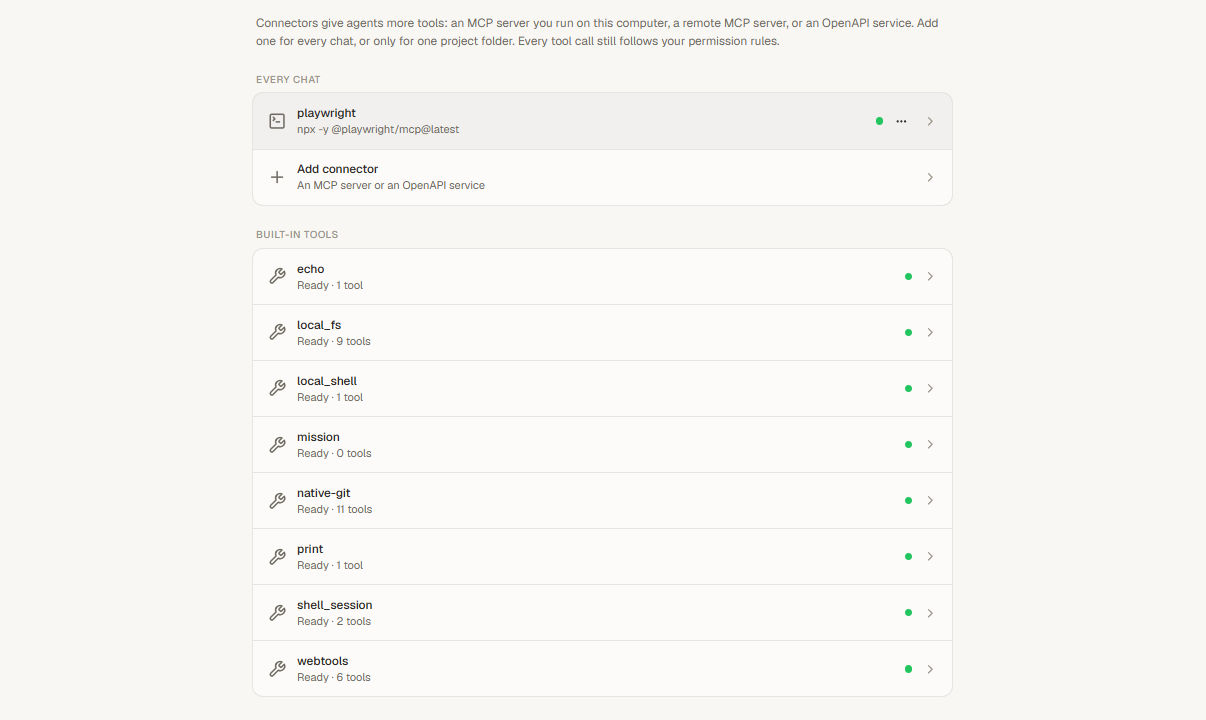
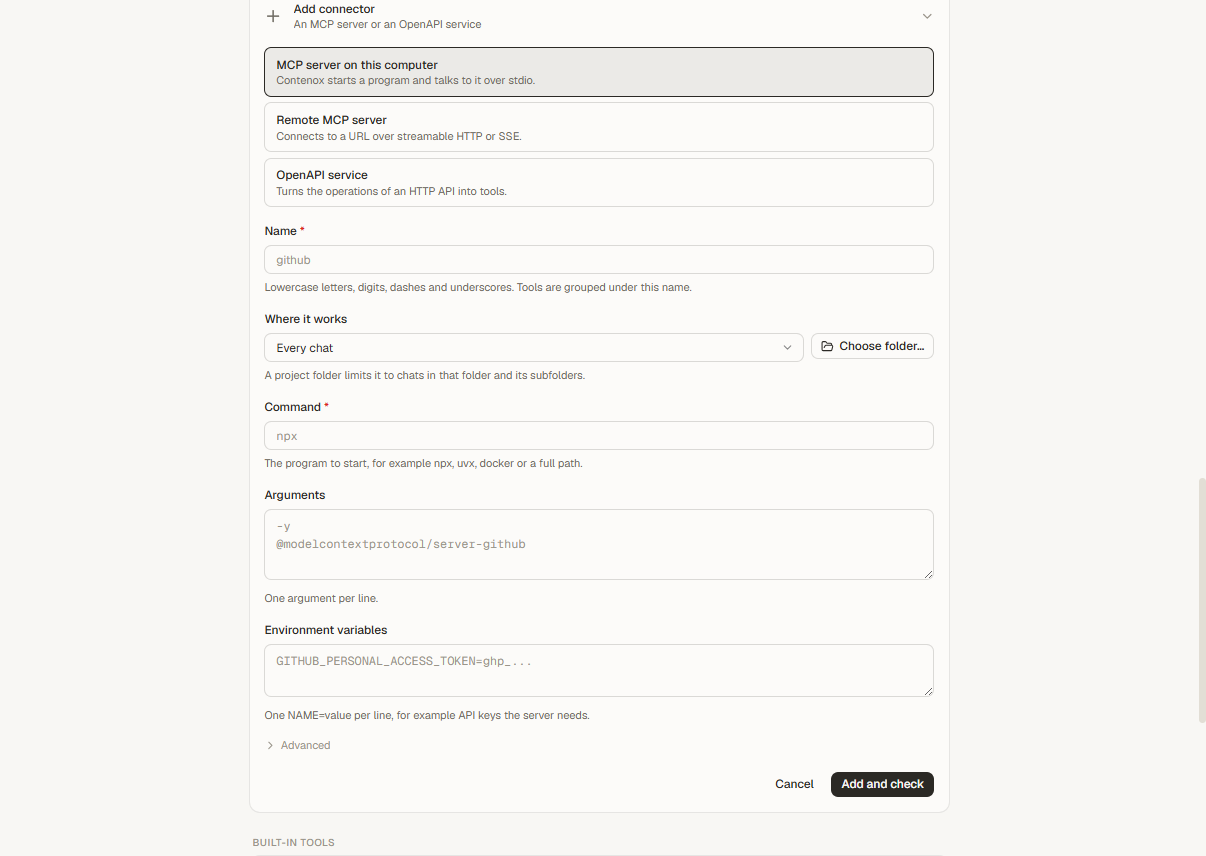
Open Connectors in the sidebar and choose Add connector. Pick the Kind of connector:
- MCP server on this computer: Contenox starts a program and talks to it over stdio.
- Remote MCP server: Contenox connects to a URL over streamable HTTP or SSE.
- OpenAPI service: turns the operations of an HTTP API into tools. See OpenAPI services as tools.
Then Add and check. Contenox starts or calls the server right away and lists its tools, so you see at once whether it works.
A server on your computer: Playwright#
Playwright’s MCP server lets the agent open pages, click through flows and take screenshots.
| Field | Value |
|---|---|
| Kind of connector | MCP server on this computer |
| Name | playwright |
| Where it works | Every chat |
| Command | npx |
| Arguments | @playwright/mcp@latest |
Arguments takes one argument per line. If the server needs an API key, put it under Environment variables, one NAME=value per line.
The npx trap:
npxanduvxonly work if Node.js or uv is installed where Contenox runs. If the connector shows Not available, open a terminal and run the same command; the error there tells you what’s missing.
A remote server: GitHub#
| Field | Value |
|---|---|
| Kind of connector | Remote MCP server |
| Name | github |
| Server URL | https://api.githubcopilot.com/mcp/ |
| Connection | Streamable HTTP |
| Sign-in | Access token |
For Access token, paste a GitHub personal access token, or fill in Or read it from an environment variable with the name of a variable that holds it, such as GITHUB_TOKEN. The variable keeps the token out of the app’s settings. Choose Server-sent events (SSE) only if the server’s docs say so.
For servers that sign you in through the browser, choose Sign-in → Sign in with the browser (OAuth). The connector then shows Needs sign-in: click Sign in, finish in the browser, then Check again. Leave OAuth client ID empty unless the server’s docs give you one.
Some vendors don’t support automatic client registration (RFC 7591); HubSpot, Salesforce and Microsoft Graph were the common cases at last check. For those, create an OAuth app in the vendor’s developer settings first and enter its client ID here, with the client secret in an environment variable named under OAuth client secret variable.
Advanced holds the rest: extra Headers, Fixed values that are sent with every call and hidden from the agent (an account or tenant ID, for example), and a Connection timeout.
Only for one project#
Under Where it works, choose Only in and pick a folder. The connector then works only in chats in that folder and its subfolders, and the Connectors page lists it under Only in that project. Use this for a server tied to one codebase, such as a database for that app.
Turn connectors on and off per chat#
In a chat, click + in the message box and choose Connectors. Connectors in this chat lists every connector and built-in tool group with a switch. Switching one off affects this chat only.
Add for this chat adds a connector that only this chat sees; it goes away when the chat closes. That’s the way to try a server without adding it everywhere.
Every connector you switch on sends its tool list to the model with every request, so a big server costs thousands of tokens per turn before the agent does anything. Switch off what a chat doesn’t need. What is MCP? has the measurements.
Hide single tools#
On the Connectors page, open a connector to see its tools. Switch a tool off to hide it from agents; Where these settings apply decides whether that’s for every chat or only for one project folder. In a chat, a hidden tool shows as Hidden on the Connectors page.
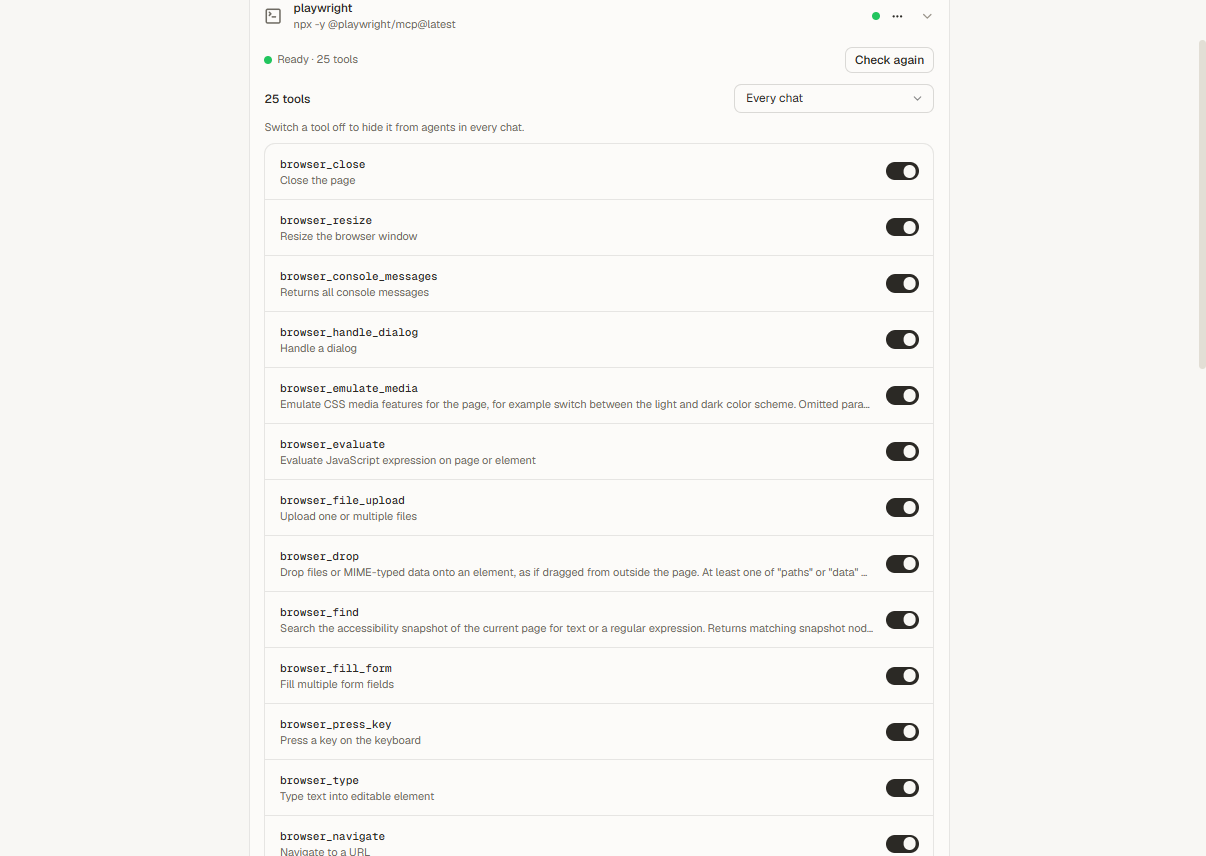
Hiding is the strongest setting: the agent never sees the tool, so it can’t ask to use it.
Permissions for connector tools#
By default, every call to a connector’s tool asks first. The chat stops at a Permission required card with the tool’s name and input, and you choose Allow or Deny.
Adding a server grants no authority to use it; the rule for the connector does. The principle, from The Soul of Contenox: “registering a tool does not grant authority to use it”, which is the difference between wiring tools together and governing them.
To change that for a whole server, open Permissions, choose a permission set, and find the connector under Tools. Set it to Allow, Ask me first or Block, or Follow the rules above. A read-only server you trust can run freely; a server that writes, such as one that creates issues or sends messages, should keep asking.
The built-in tool groups (local_fs, local_shell and the others) also have Rules on the Connectors page: limits such as the folder the tools may work in, paths that are always refused, or the largest file the agent may read. An empty field keeps the value from your agents.toml. See built-in tools and permissions.
Connectors brought by agents#
An agent can declare its own MCP servers in its agent file. Those appear on the Connectors page under Brought by agents, with the same tool switches and the same permission rules as the ones you added.
When a connector doesn’t work#
| Status | What it means | What to do |
|---|---|---|
| Not available | Contenox couldn’t start or reach the server, or list its tools | Run the command in a terminal, or open the URL; fix the error; Check again |
| Needs sign-in | The server wants an OAuth login | Sign in, finish in the browser, Check again |
| Connected, but it offers no tools | The server answered with an empty tool list | Check its docs; some servers need a setting or an API key before they offer tools |
From the command line#
For scripts and CI, contenox-runtime registers the same connectors:
contenox-runtime mcp add playwright --transport stdio --command npx --args "@playwright/mcp@latest"
contenox-runtime mcp add github https://api.githubcopilot.com/mcp/ --auth-type bearer --auth-env GITHUB_TOKEN
All mcp options are in the command reference.
Related#
 What is MCP?: what a server gives an agent, and what it costs in contextWhat is MCP? The Model Context Protocol, explained simplyWhat is MCP? The Model Context Protocol in plain words: what it does, how it differs from an API, how to add a server to your coding agent, and when to skip it.
 OpenAPI services as tools: turn an HTTP API into tools without an MCP serverOpenAPI AI agent tools: turn any HTTP API into toolsTurn an OpenAPI spec into AI agent tools: Contenox makes each operation a tool, with tokens, logins and permissions. What Claude Code and Codex need.
 Built-in tools and permissions: the rules every tool call goes throughContenox permissions and built-in tools: files, shell, gitContenox permissions explained: what agents may read, change and run without asking, what asks first, what is blocked, and how to change the rules.
 AI agent permissions: what to allow, ask and blockAI agent permissions for coding agents: a safe starting rule set, real config for Claude Code and Codex, the gaps in command rules, and when to skip prompts.