OpenClaw
Run your own assistant.
Choose the machine that stays awake. Give your assistant a recurring job and have it send the result to a private channel you already use.
Updated
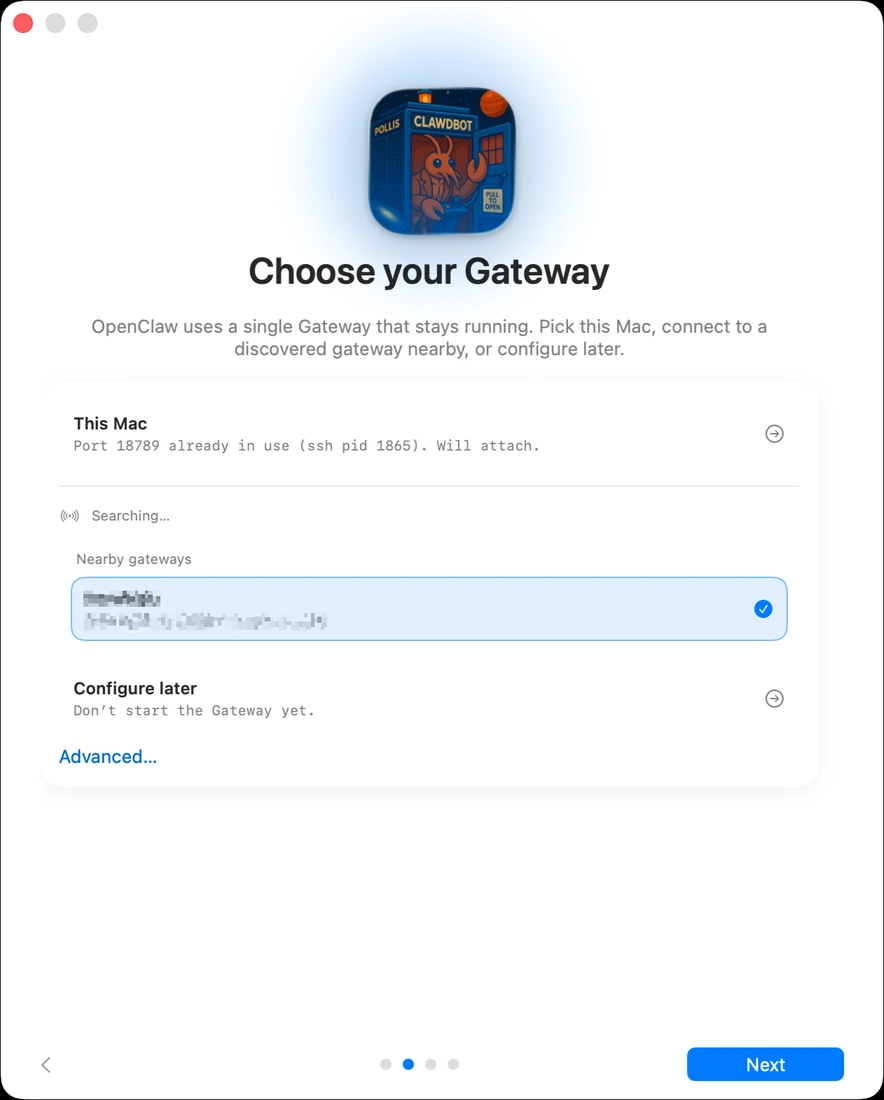
OpenClaw is a self-hosted assistant you can reach through a browser dashboard or a connected chat channel. Its gateway is the process that stays running, receives messages and wakes the agent for scheduled jobs. One reason to choose it is that the computer you use to ask a question can be different from the computer that does the work. OpenClaw getting started
What can you use OpenClaw for?#
Start with work that has a bounded source and an output you can inspect. The examples below are suggested trial jobs; the tools and account access you configure determine which inputs the agent can actually reach.
| Job | Give the agent | Ask it to return |
|---|---|---|
| Morning brief | A selected calendar export, a current task list and two public sources | Today’s commitments, changes that matter and links to the evidence |
| Release watch | Official feeds, installed versions and a saved previous release ID | New releases since the last verified check, with uncertainty kept visible |
| Documentation watch | Exact pages, previous snapshots and the fields you care about | A dated table of changed requirements or deprecated behavior |
| Feedback digest | A bounded batch of support reports and a date range | Groups with source links, counts and questions that need investigation |
A daily digest becomes useful when it makes a decision easier: what should you read, prepare or investigate today? Keep the first version short enough to check against its inputs.
Choose the machine that will stay awake#
For a first conversation, a laptop is sufficient. For a morning digest that should arrive while the laptop is in a bag, place the gateway on a machine that stays powered and connected. Connect a model provider during onboarding and check its billing separately from the cost of that host. The gateway’s state and the service that supplies a model have different jobs.
Start with the dashboard#
Follow the installation and onboarding steps for your operating system. Once the gateway service is installed, these commands check it and open the dashboard:
openclaw gateway status
openclaw dashboard
Send a short message in the dashboard. Then connect one chat destination and ask for a test delivery there. Doing those in order helps distinguish a model or gateway issue from a channel whose pairing is incomplete. Installation and dashboard guide
Make a release digest you can verify#
Ask for a weekday schedule at a stated time in your own time zone. Give the agent one public project’s releases URL, tell it to include the tag and source link, and tell it where to deliver the result. Ask it to show the saved schedule. Run the job once and open its run history. A successful run and a message arriving in the intended channel are two separate checks.
The gateway stores schedules and records how a run ended. If a delivery is missing, start with the gateway’s uptime at the scheduled time, then inspect its run result and delivery destination. OpenClaw documents its handling of missed slots and restarts in how automations work.
Before treating the digest as finished, repeat it with an unchanged source. The result should follow your chosen policy: either a short “no new releases” confirmation or no message. Then introduce a known new item in a test feed and check that the digest reports it. A repeated old item gives you a reason to inspect the saved baseline and reporting instructions.
Can OpenClaw use a local model?#
OpenClaw documents local, mixed local/cloud and direct cloud Ollama routes. Select the route intentionally: an application running on your computer can still use a hosted model. OpenClaw’s Ollama options
For the native Ollama integration, use baseUrl without /v1. The example http://localhost:11434 applies when Ollama is reachable there from the Gateway; otherwise use an address the Gateway can reach. OpenClaw warns that /v1 breaks tool calling in this integration. Follow its native-provider configuration rather than copying another client’s endpoint.
After connecting, test a small task that requires an actual tool result. A normal chat response establishes less than a successful tool request and returned result. If the reply prints a tool call as text, check the gateway’s Ollama URL and repeat the task.
How should you judge OpenClaw’s performance?#
Choose one recurring job and record the outcome for each attempt. For the release watch, check the release identifier, publication date, source link, saved baseline and received message. Also record the time you spent correcting or checking it. A useful comparison keeps the source material and acceptance criteria the same when you change a model or configuration.
Separate the costs of inference, the host and any paid tools. Include retries and failed runs in your observation. You are evaluating the setup you will operate, including the time it takes to notice and repair a problem.
Why did the scheduled result not arrive?#
Check the particular job’s history before creating another schedule. No execution record, a failed model or tool call, and successful execution followed by failed delivery need different fixes. If the message is already in the correct conversation, check the receiving app’s notifications. OpenClaw’s automation troubleshooting separates these stages.
If a manual run delivers, leave the schedule in place for one timed run. Compare the expected time with the run history.
OpenClaw or Hermes Agent?#
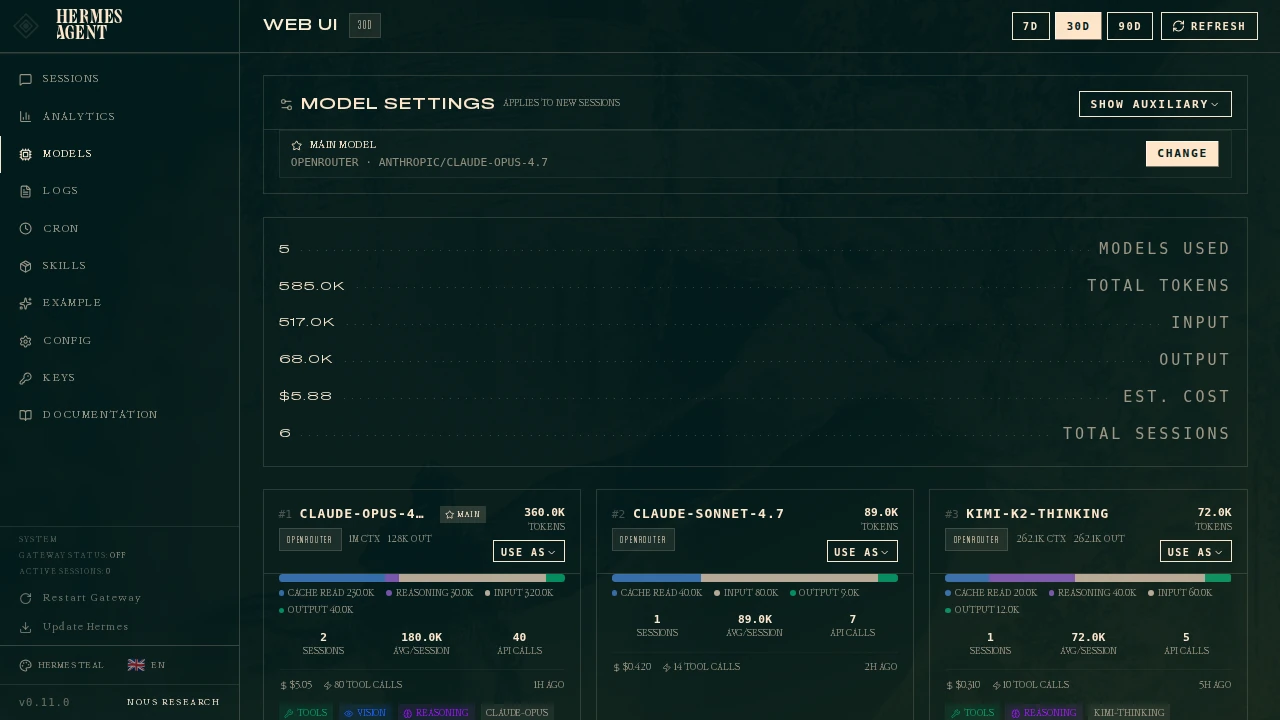
Both are candidates for recurring research and delivery. Start with the source access, hosting arrangement and destination your job needs, then run the same small assignment in each.