
Why is my local LLM slow? Loading, context and GPU memory
Updated

A local LLM can be slow while loading its weights, processing your prompt, or generating the answer. Those delays need different fixes. Measure the three stages first, then check GPU use and context size before downloading another model or changing hardware.
With Ollama, start here while a request is running:
ollama ps
The PROCESSOR column tells you whether the model is on the GPU, CPU or split between them. Check CONTEXT too: the model needs memory for the conversation as well as its weights. Ollama documents both fields.
Where is the time going?#
| What you see | What to inspect | First comparison |
|---|---|---|
| The first request is slow; the next is quick | Model loading and prompt reuse | Repeat the same short prompt immediately |
| A long pause before any text | Prompt processing, queueing or thinking output | Try a fresh session with a short prompt |
| Text arrives slowly throughout | Generation speed and device placement | Check ollama ps during generation |
| It gets slower as the conversation grows | Input length, cache reuse and attention work | Compare the same task in a fresh session |
| Chat is quick, but the coding agent crawls | Tool definitions, history, model selection and tool execution | Compare the agent request with a direct model request |
Change one thing at a time. Otherwise a faster run tells you very little about what fixed it.
How do I measure loading, prompt time and generation?#
Ollama’s generate API reports separate durations in nanoseconds. This PowerShell example sends two identical requests to an already downloaded local model. It caps output at 64 tokens and keeps the model loaded between requests.
Run ollama list, then enter the exact name of a downloaded text-generation model when prompted. Stop other requests for the comparison.
ollama list
$modelName = Read-Host 'Downloaded local model name'
$body = @{
    model = $modelName
    prompt = 'Explain what a regression test does in two sentences.'
    stream = $false
    keep_alive = '5m'
    options = @{ num_predict = 64; temperature = 0 }
} | ConvertTo-Json -Depth 4

1..2 | ForEach-Object {
    $result = Invoke-RestMethod -Method Post `
        -Uri 'http://localhost:11434/api/generate' `
        -ContentType 'application/json' -Body $body
    $rate = if ($result.eval_duration -gt 0) {
        [math]::Round($result.eval_count * 1e9 / $result.eval_duration, 1)
    } else { $null }
    [pscustomobject]@{
        Run = $_
        LoadSeconds = [math]::Round($result.load_duration / 1e9, 3)
        PromptSeconds = [math]::Round($result.prompt_eval_duration / 1e9, 3)
        OutputTokens = $result.eval_count
        GenerateSeconds = [math]::Round($result.eval_duration / 1e9, 3)
        TokensPerSecond = $rate
    }
}
Read the columns separately:
- LoadSeconds: time spent loading the model.
- PromptSeconds: time spent processing uncached prompt tokens.
- GenerateSeconds and OutputTokens: time and output count for generation.
For example, 80 generated tokens in four seconds means 20 tokens per second during generation. Dividing those tokens by the entire request time would mix loading and prompt work into that rate.
This request uses stream = false, so the terminal displays the result after completion. It does not measure when the first streamed token would arrive. The first run may already be warm if the model was in use; the load column tells you what happened.
Why is the first response slow?#
The model may need to move from disk into memory. Once loaded, it can answer another request without repeating that work. Prompt caching can separately reuse the processing of an unchanged beginning of the input.
These are different savings. Keeping weights loaded avoids loading them again; keeping compatible prompt state avoids reading the same prompt again.
In Contenox’s July 2026 tests, Qwen2.5-1.5B ran on an RTX 3060 Laptop GPU with 6 GB of memory. Two turns in the same session kept a 9,350-token prefix unchanged:
| Stage | Cold turn | Warm turn |
|---|---|---|
| Prepare the stable prefix | 1.77 s | 0.03 s |
| Generate 16 tokens | 0.13 s | 0.13 s |
| Whole turn, after session opening | 1.97 s | 0.18 s |
The benchmark report records all 9,350 prefix tokens reused on the warm turn. Generation took the same time. The improvement came from avoiding repeated prompt processing.
Keep the model available while you work and avoid rewriting the beginning of every request. Prompt caching explains why changing tool definitions, timestamps or early messages can lose that benefit. vLLM makes the same distinction in its prefix-caching documentation: reuse speeds up prompt processing, not the generation of new tokens.
Why are tokens slow even after the model loads?#
Check where inference actually runs. If you expected GPU execution but ollama ps shows CPU use, inspect the server logs and the supported GPU and driver combinations. If it shows a CPU/GPU split, compare a smaller model that fits alongside the context you need.
For a single stream, generation often spends much of its time moving weights through memory. Arm’s explanation of decode bandwidth shows why adding CPU threads eventually stops helping: the cores are waiting for data. A model fitting in system RAM establishes capacity, not GPU-like speed.
Try a smaller model or a smaller quantization, then check the quality of its answers as well as its speed. Close other heavy GPU workloads for the comparison. If a model already fits on the GPU but remains slow, look at its architecture, context and generation settings before assuming the driver is broken.
Should I lower the context length?#
A larger context needs more memory. A longer actual prompt also adds work before generation, and accumulated context can increase the work of generating later tokens. Compare a short fresh session with the long one to see whether that is your bottleneck.
For a short chat, reducing an unnecessarily large allocation may help the model fit. A coding agent needs space for instructions, tool definitions, file contents and tool results. Ollama’s context guide recommends at least 64k for coding agents. If that pushes your chosen model beyond available memory, try smaller weights while preserving useful working context.
The context trap: shrinking the window until the model runs entirely on the GPU can make a short benchmark faster while leaving too little room for the actual coding task.
Use the context control in the Ollama app, then check the active allocation with ollama ps. For how weights and conversation state share memory, see the KV cache.
Why is my coding agent slower than plain chat?#
The agent sends more than the sentence you typed. Its request can contain instructions, a tool catalogue, previous messages and file contents. It also waits for shell commands, tests and other tools between model responses.
Check the selected model before comparing runs:
| Agent | Local setup or model check | Compare against |
|---|---|---|
| Claude Code | ollama launch claude; choose the intended local model |
A direct request to that same model |
| Codex CLI | ollama launch codex, then /model |
The same installed model and context |
| OpenCode | ollama launch opencode, then /models |
The same provider, model and context |
These entry points are documented for Claude Code, Codex and OpenCode. Keep the prompt size in mind: a tiny direct request is a diagnostic baseline, not an equivalent agent workload.
Watch whether the agent is generating, waiting for a tool or repeating a failed action. A fast model that repeatedly calls the wrong tool can take longer to finish than a slower model that gets the task right. Reasoning models may also generate thinking tokens before the visible answer; inspect that activity if your client exposes it.
Why is memory still occupied after I close the chat?#
The model server can outlive the chat window. Ollama normally keeps an idle model loaded for five minutes, and clients can request a different lifetime. To inspect and unload it:
ollama ps
ollama stop MODEL_NAME
Replace MODEL_NAME with the name shown by ollama ps, once its current work is finished. Stopping unloads it from memory; the downloaded files remain available. Use ollama list to see the inventory on disk. The commands are in the Ollama CLI reference, and retention settings are in its FAQ.
If GPU detection or loading still fails, inspect the server log. On Windows, open %LOCALAPPDATA%\Ollama\server.log; on macOS, ~/.ollama/logs/server.log. Linux systemd installations use journalctl -u ollama. Ollama’s troubleshooting guide covers other installation types.
Contenox#
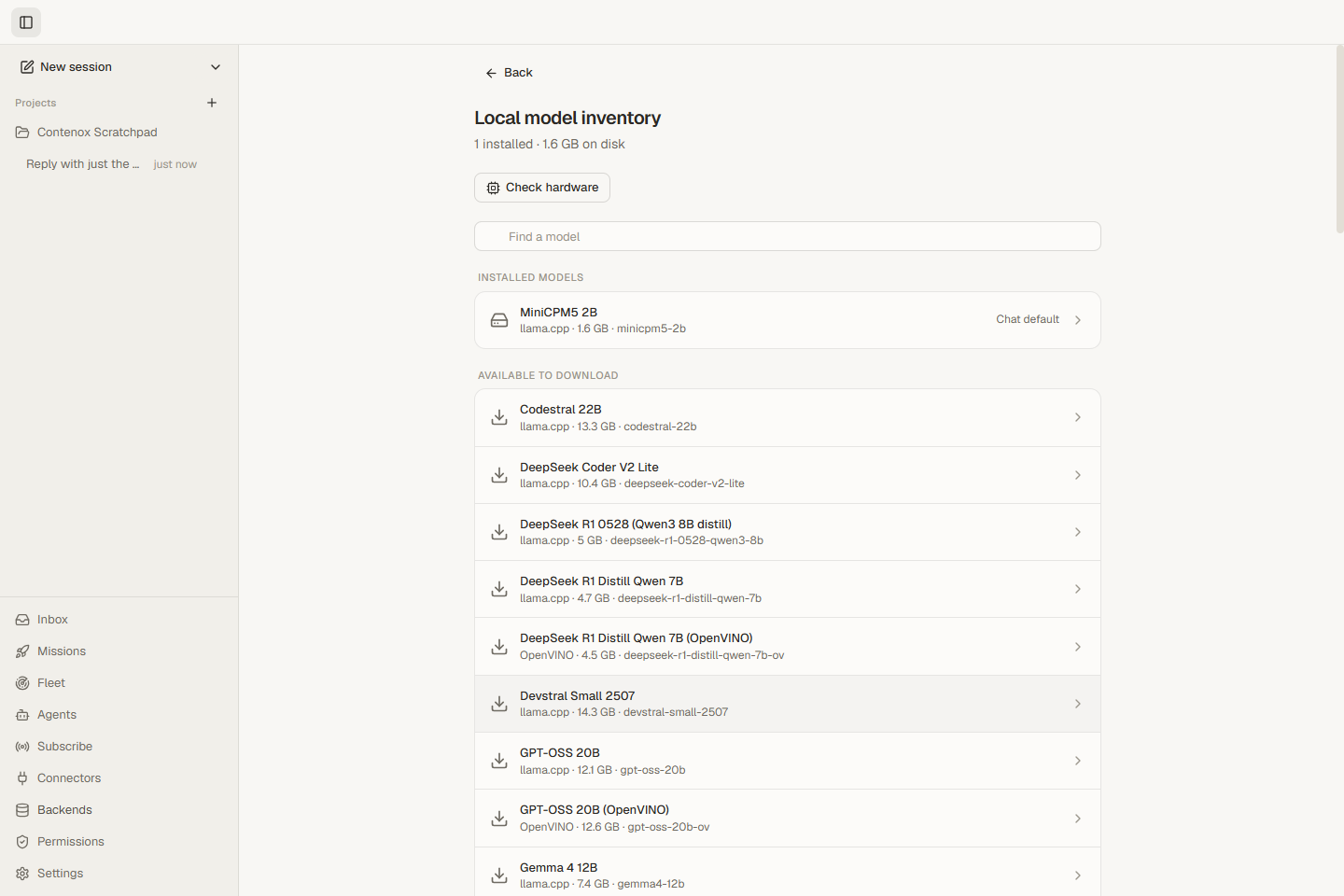
Windows x64 builds from Contenox 1.0.22 include native Local AI with hardware detection and model recommendations. Backends → Providers → Local AI → Manage models shows downloaded models and lets you choose another for chat. Under Backends → Local AI status, expand a model’s row and select Unload from memory to release it while keeping its files. See local setup and model management, or get Contenox for Windows.
Related guides#
 How to run local LLMs for coding: hardware, memory and agent setupHow to run local LLMs for coding: hardware, setup, contextHow to run local LLMs for coding: which model fits your GPU, the Ollama setup, the context setting that breaks agents, and connecting Claude Code, Codex or OpenCode.
 Prompt caching: keep repeated input cheap to processPrompt caching explained: faster, cheaper AI agent sessionsPrompt caching explained for AI agents: how it works at Anthropic, OpenAI, Gemini and locally, what silently breaks it in agent sessions, and how to keep it warm.
 What is the KV cache?: the memory your conversation needsWhat is the KV cache? How much memory your context needsWhat is the KV cache, and why does a long context need so much GPU memory? The formula, worked examples for real coding models, a calculator, and how to shrink it.
 Best Ollama harness: choose an agent for your local modelBest Ollama harness for coding: Claude Code, OpenCode, CodexThe best Ollama harness for your GPU: how Claude Code, Codex, OpenCode, Aider, Goose, Cline and DeepSeek Harness handle local models, setup effort, and what to pick.
 Local AI vs cloud AI: choose where to run the taskLocal AI vs cloud AI for coding: which should you use?Local AI vs cloud AI for coding: compare privacy, offline work, hardware and cost, then try the same task with both before choosing where your model runs.
 Choose a coding modelHow to compare AI coding models on your own codebaseCompare AI coding models on five tasks from your repository. Score each run on passing tests, unnecessary edits, elapsed time and cost per finished task.
 Coding benchmarksAI coding agent leaderboards and benchmarks, explainedEvery AI coding agent leaderboard worth checking in 2026: what each measures, who runs it, why the scores mislead, and how to benchmark agents on your own repo.
 Which AI provider?Which AI provider for coding agents? A decision guideWhich AI provider for coding agents: subscription or API key, cloud account or local, and which providers work in Claude Code, Codex CLI and OpenCode.