
Download a model with the built-in Windows engine
Updated
On Windows x64, choose Use local AI to download a model and run it with Contenox’s built-in engine. The public model shown below downloads without an account or API key. Download Contenox
To run a local model with Ollama on Windows, macOS or Linux, or to connect your own vLLM server, follow the guide for that engine. Ollama setup · vLLM setup
1. Find a model your PC can run#
- Install and open Contenox. On How would you like to chat?, select Use local AI.
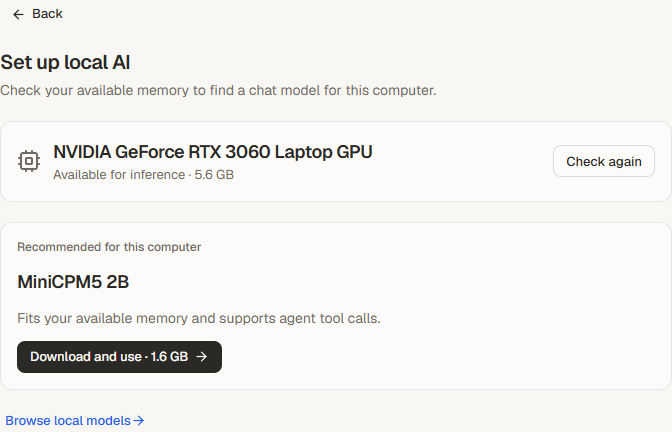
- Select Detect my hardware. Available for inference shows how much memory the engine can use.
- Under Recommended for this computer, check the model name and download size.
2. Download the model and get a reply#
- Select Download and use. Contenox downloads the weights, loads the model, and displays Testing the model in chat…. For an installed model, select Use for chat.
- In Scratchpad, try “Create release-checklist.md with a short checklist for testing a website before launch. Cover mobile layout, broken links, and form submissions.” Open Files → release-checklist.md to read what your model wrote.
- To use the model with your own files, create your first project. To switch models later, open Backends → Providers → Local AI → Manage models.
Which options can I leave alone?#
| Option | When to use it |
|---|---|
| Browse local models | Use the recommendation for a first chat. Browse if a download is too large or you want a different model. Choose a chat model that supports tool calls for working with files. |
| Download or Download and use | Download adds the model to inventory. Download and use also tries it in chat. For a model already in inventory, Use for chat selects and tests it. |
| Hugging Face read token | Public, unrestricted downloads usually need no token. If the app reports that the repository needs access, select Open model repository, sign in there, and follow its access or license steps. Enter a read token for that account and retry, or select a public model. |
| Import model | Skip this for a catalog download. Import is for someone bringing an existing model file, model directory, or repository. |
| Unload from memory | Use this under Backends → Local AI status to free memory while keeping the download. Remove in Manage models deletes the model files from disk. |
Return to the first-run guide · Compare ways to run models locally
Related#
 ChatGPT subscriptionUse your ChatGPT subscription for a coding agent | ContenoxUse your ChatGPT subscription for a coding agent. Set up device sign-in in Contenox or use Codex on desktop, in an editor or in the terminal. Check plan limits.
 GitHub Copilot subscriptionUse your GitHub Copilot subscription in other coding agentsUse your GitHub Copilot subscription outside VS Code: sign-in steps for OpenCode, Codex and Contenox Harness, which plans you need, and how AI Credits are billed.
 Anthropic (Claude)Claude coding agent on Windows: API key setup | ContenoxRun a Claude coding agent on Windows: Claude Code with a subscription or API key, OpenCode with a key, why Codex can't, plus models, billing and key errors.
 GeminiGemini coding agent: API key, free tier and setup | ContenoxSet up a Gemini coding agent: AI Studio key in OpenCode, Antigravity CLI or Contenox Harness, why Claude Code and Codex can't, free-tier data use, models and 429 fixes.